📋 Companion Planning
Plan your days, privately. A local-first todo and planning app — tasks, time blocks, tags, an auto-scheduler, and background automation — all in one SQLite file on your own Hub.
Install & availability
Available now. Install from the Companion Hub App Store. Runs entirely on your Hub; works without any cloud account. Version 4.2.2.
| Hub App Store | Search Companion Planning (app id ci-planning) → Install |
| Port | 18829 in the store listing. The container listens on 3848. |
| Architecture | linux/amd64 and linux/arm64 (multi-arch) |
| Requires | Companion Hub v0.2.27 or later |
| Persistence | SQLite at DB_PATH=/data/companion.db |
| Install options | Admin username, admin password (required), Ollama URL, timezone, token encryption key, and Share crash reports |
Overview
Companion Planning is a private, local-first planning app. It manages your tasks, time blocks, tags, routines, and objectives, and includes an auto-scheduler and background automation — all stored in a single SQLite file on your Hub. The frontend is a SolidJS PWA and the backend is a Koa API, served together on one port.
Everything works without AI. If your Hub has a local model runtime (Ollama), Companion Planning layers on optional intelligence — a generated day briefing, task extraction from email and calendar, and embedding-based dedupe — and degrades gracefully to deterministic behavior when AI is unavailable. Every AI surface stays hidden until Ollama is reachable.
Current capabilities
What Companion Planning does today, as shipped:
- Tasks, time blocks, tags, routines, and objectives in a single SQLite database
- Auto-scheduler that proposes candidates for your day, with a trust setting that controls how much it does on its own
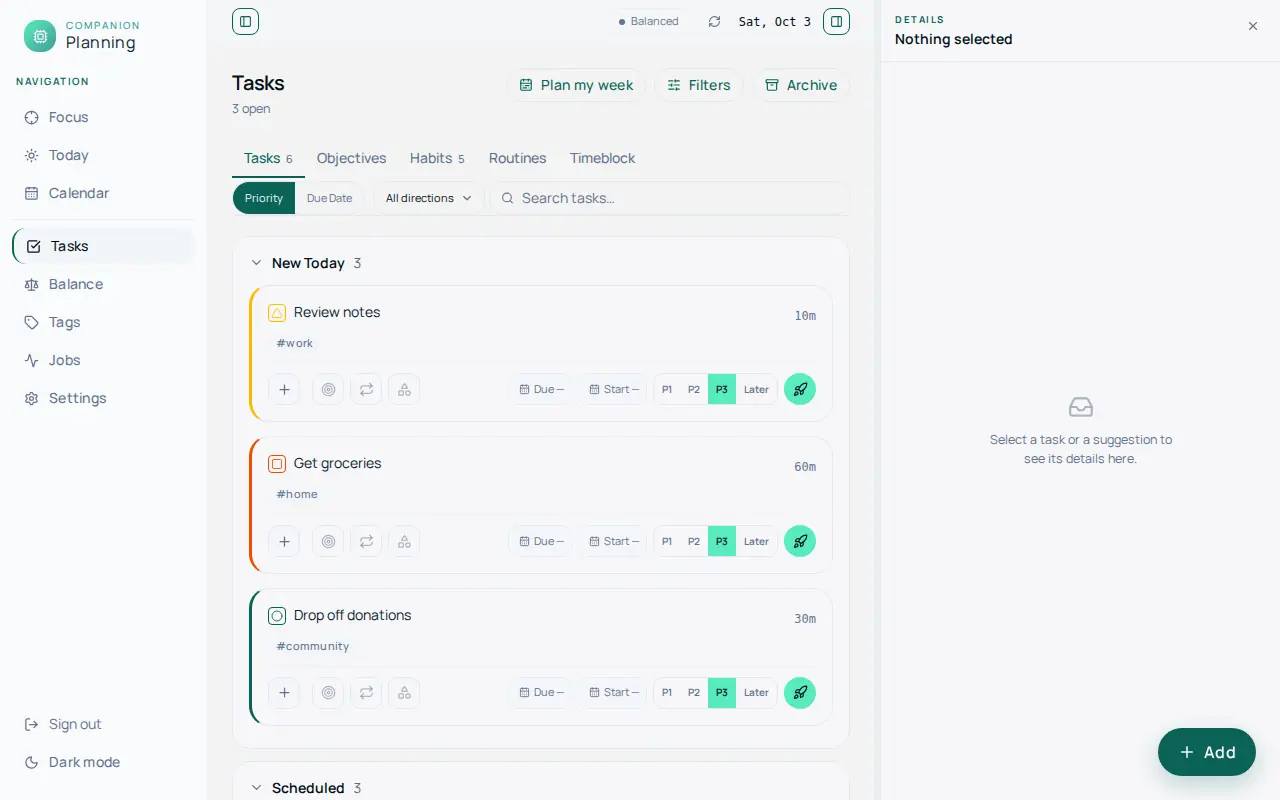
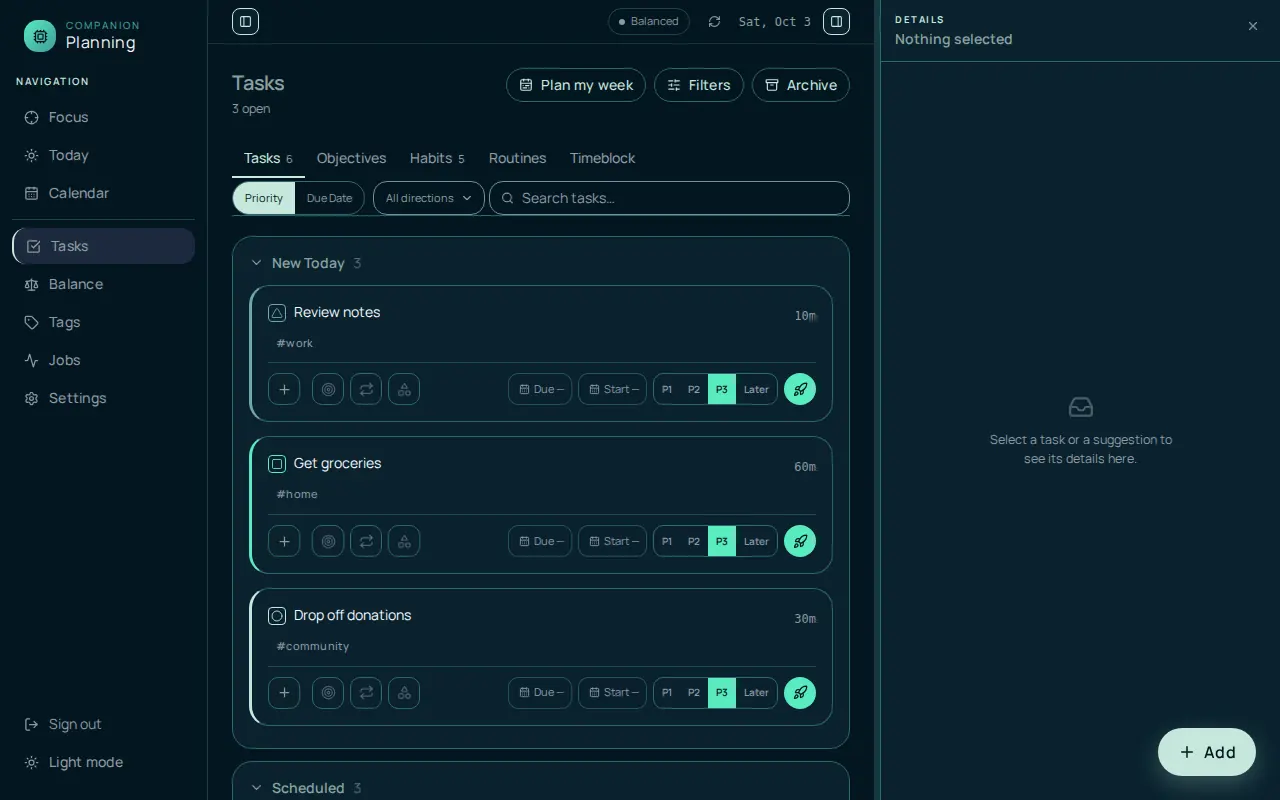
- New Today — every task created today, whether you added it or an automation suggested it, appears in a New Today section at the top of Tasks until the day rolls over
- Google Calendar sync — two-way calendar sync, off by default (see Google Calendar)
- Background jobs for ingestion, grooming, reminders, and scheduling (see below)
- REST API + SSE so agents and other tools can read and drive your plan
- Optional Ollama for AI assistance, with deterministic fallbacks throughout
First run
Fill in the install form
When you install from the Hub App Store, the form asks for:
- Admin username (default
admin) and Admin password. The password is required: the app refuses to start without a way to log in. Hub cannot show you a generated value later, so choose a strong password and store it. The pair creates one owner account on first boot only; changing them later does not rename or re-password that account. - Timezone, an IANA name such as
America/Los_Angeles(defaultUTC). It sets the container clock, which decides what “today” means and when the nightly jobs run. - Ollama URL, filled in from Hub → Settings → AI. Leave it blank to use the Hub default.
- Token encryption key, generated for you. It encrypts stored Google tokens. Back it up with your app data.
- Share crash reports, on by default.
Sign in
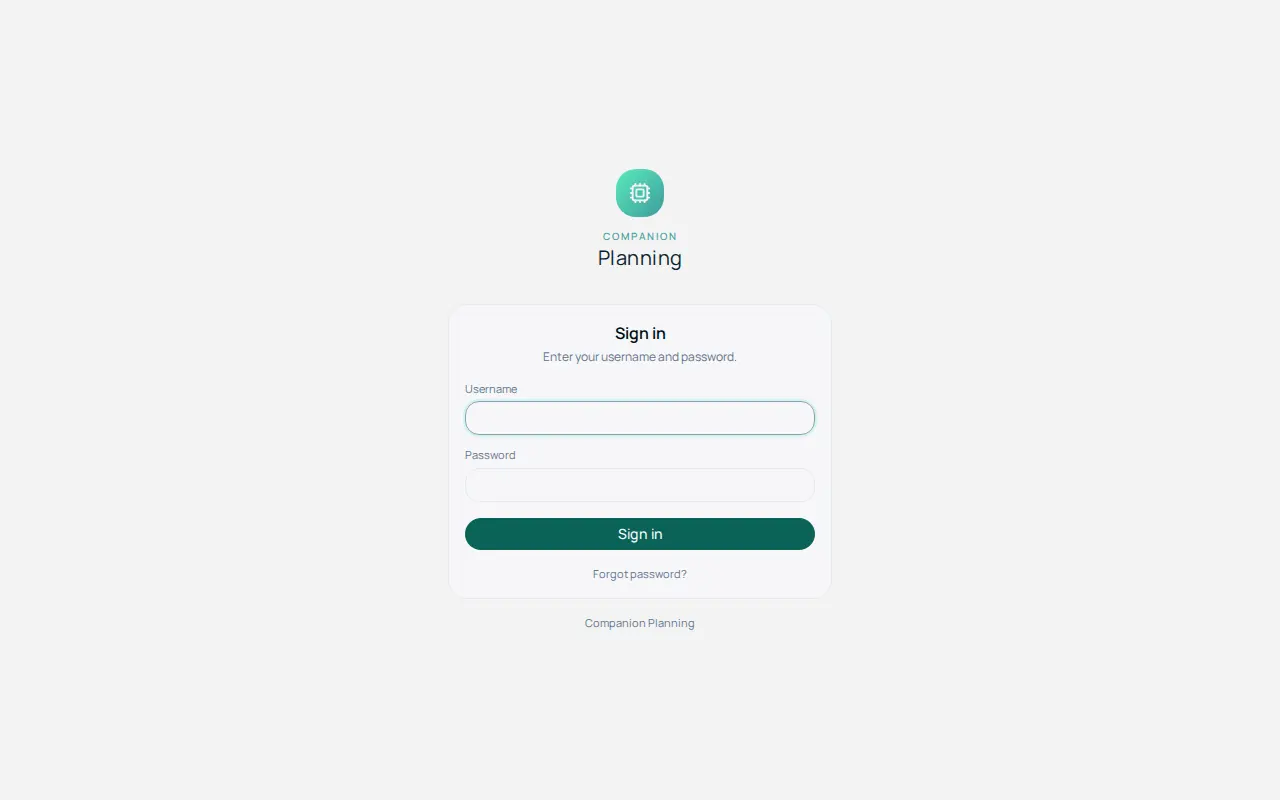
Open the app from its card on the Hub dashboard and sign in with the admin username and password you chose.
Complete the first-run overlay
A five-step overlay opens for a new account. Every step is skippable.
- Welcome — your name and email.
- Time and place — when you usually wake up and go to bed. The planner folds the hours outside that range away so your real day fills the screen. You can change it later in Settings → Planner display.
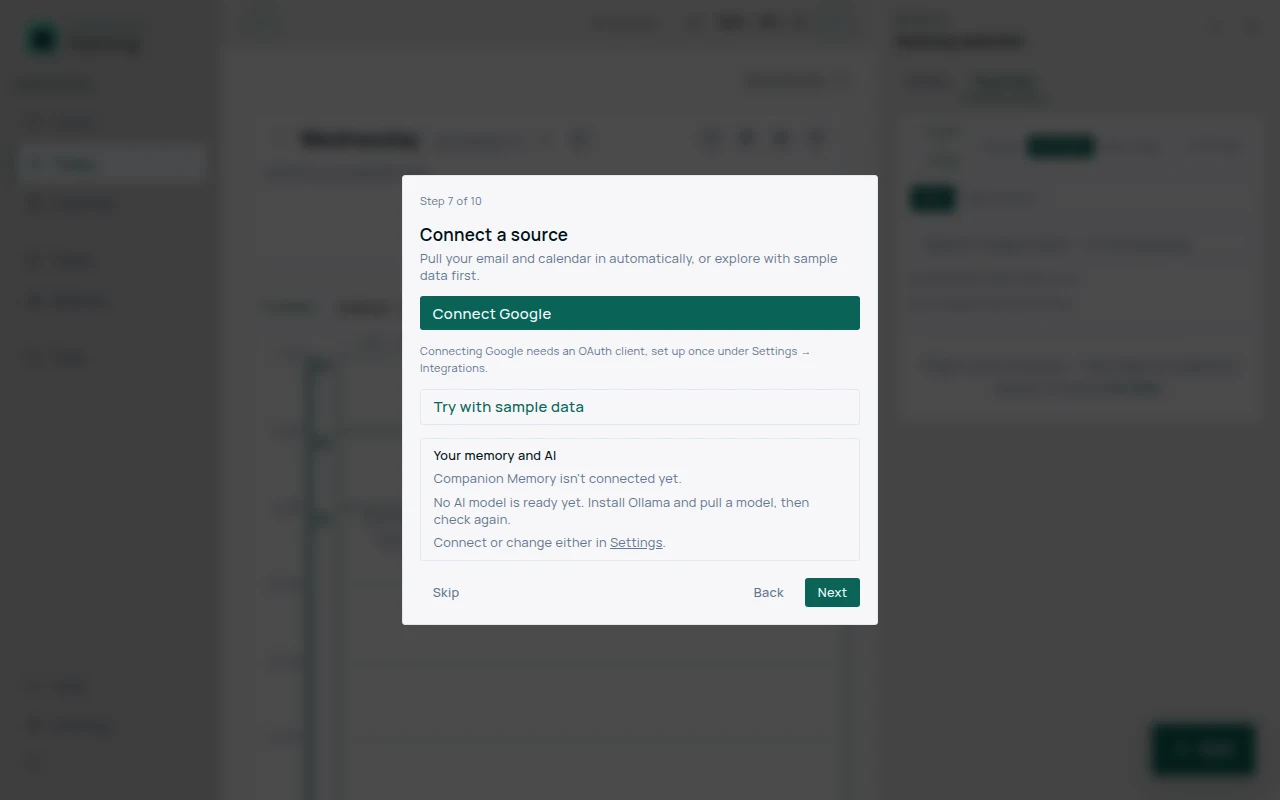
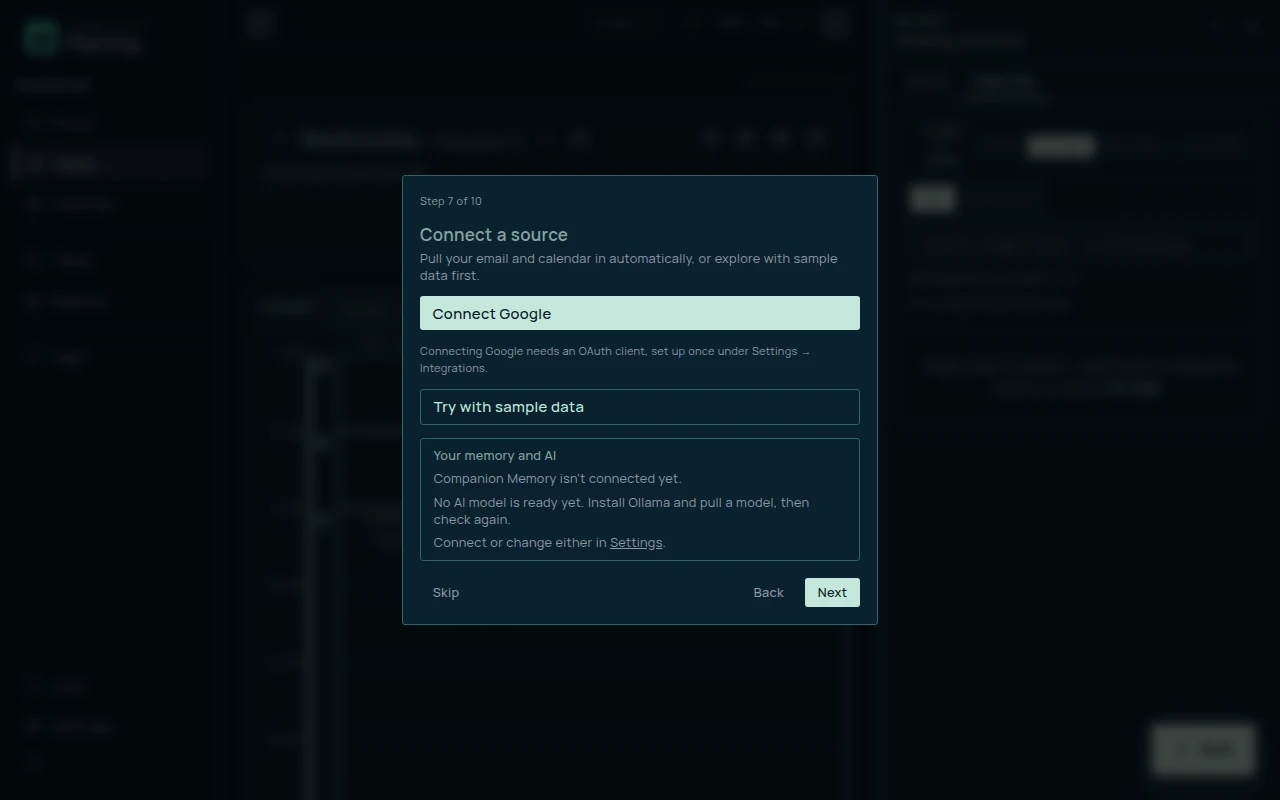
- Connect a source — choose Try with sample data to fill the board with a curated demo set. This button is available to the admin account. Connect Google works only after an admin has set up a Google OAuth client once, under Settings → Connections → Integrations; until then the step says so. You can connect your Companion Memory later from Settings → Connections.
- Trust dial — Cautious schedules nothing for you. Balanced schedules nothing until you ask. Hands-off schedules new work as it arrives, a week ahead. Change it any time from the automation control at the top of the app.
- Run your first sync — pulls in email and calendar now instead of waiting for tonight’s job. With no source connected it does nothing.
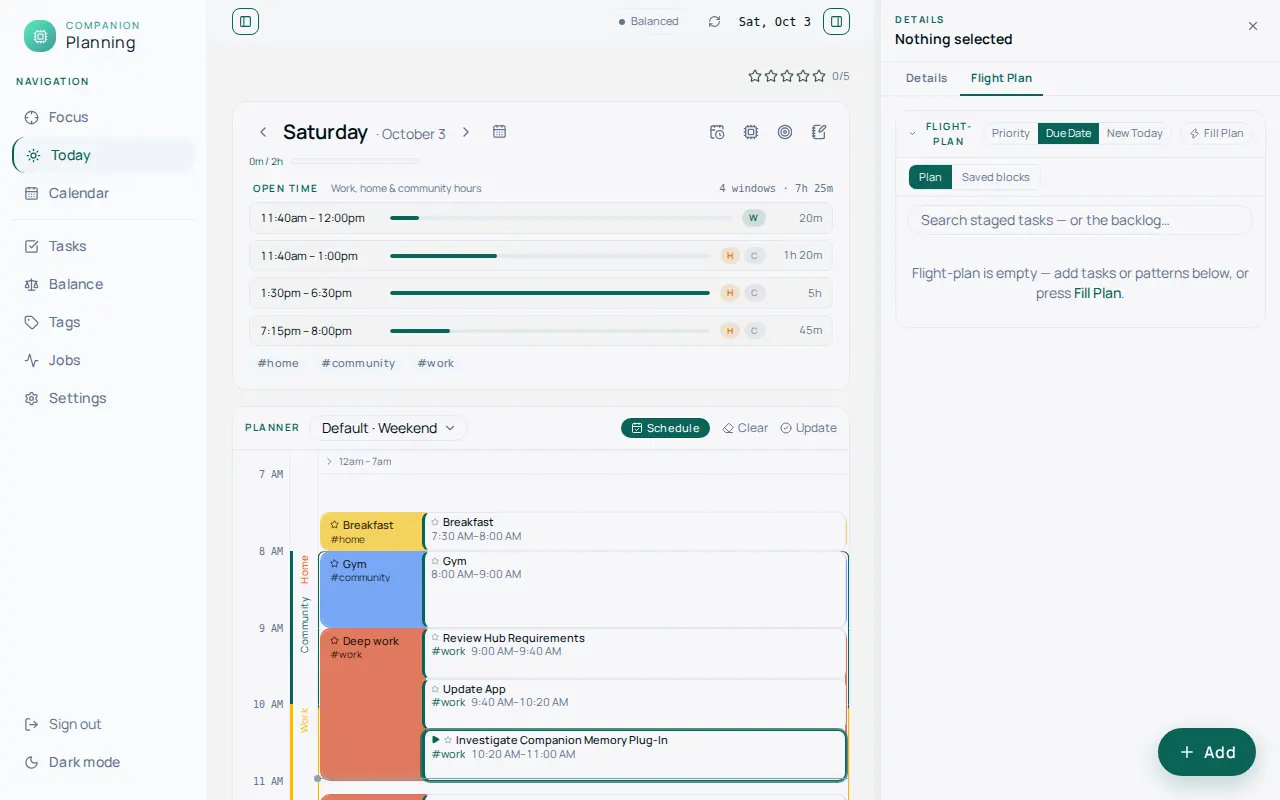
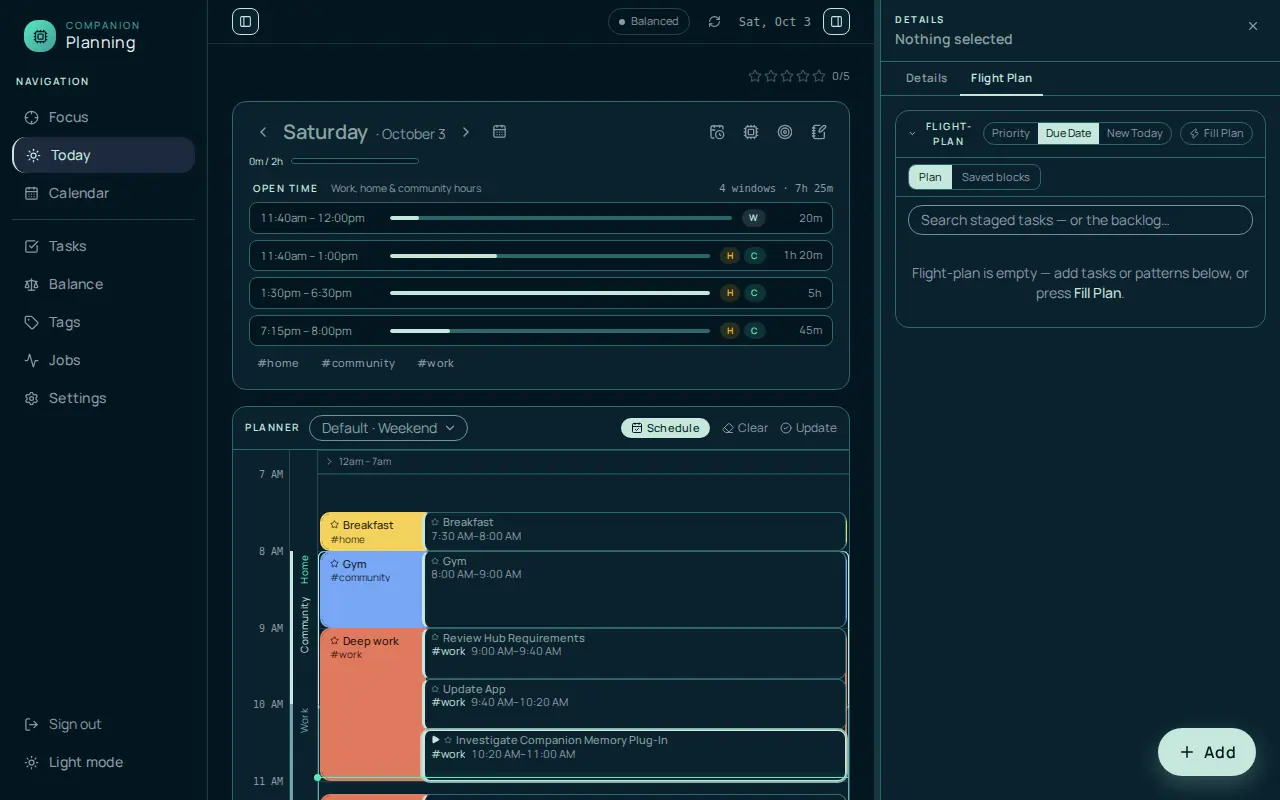
After Try with sample data, Today shows a day planner and Tasks lists the sample tasks, with everything created today under New Today.
Persistence
State lives in one SQLite file at DB_PATH (default /data/companion.db). The Hub mounts ${APP_DATA_DIR}/data to /data, so back up that directory to back up everything — tasks, blocks, tags, and history. A daily job at 2:00 AM also writes a point-in-time snapshot to a backups folder beside the database and keeps the newest seven.
Configuration
On a Hub install you set these options in the install form. The variables below are what the container reads.
| Variable | Purpose |
|---|---|
PORT | HTTP port (internal 3848) |
DB_PATH | SQLite file path (default /data/companion.db) |
OLLAMA_URL | Ollama endpoint (Hub wires ${APP_OLLAMA_URL}); optional |
OLLAMA_FAST / OLLAMA_QUALITY / OLLAMA_EMBED | Models for fast extraction, quality briefings, and embeddings. The older names OLLAMA_SMALL and OLLAMA_MEDIUM still work. |
TZ | Timezone — set it so “today” and the nightly jobs match your local time. The install form sets it from Timezone. |
GOOGLE_MODE | Pins Google integration to live or fixture. Leave it unset to configure Google in the app. |
LOG_LEVEL | Log verbosity |
Set your timezone at install. “Today,” day boundaries, and the scheduled jobs all key off the container’s timezone, which defaults to UTC. If it is wrong, your day briefing and 2 AM and 3 AM jobs run against the wrong calendar day. If the stored timezone is still the UTC default, the web app adopts your browser’s timezone the first time you open it.
Google Calendar
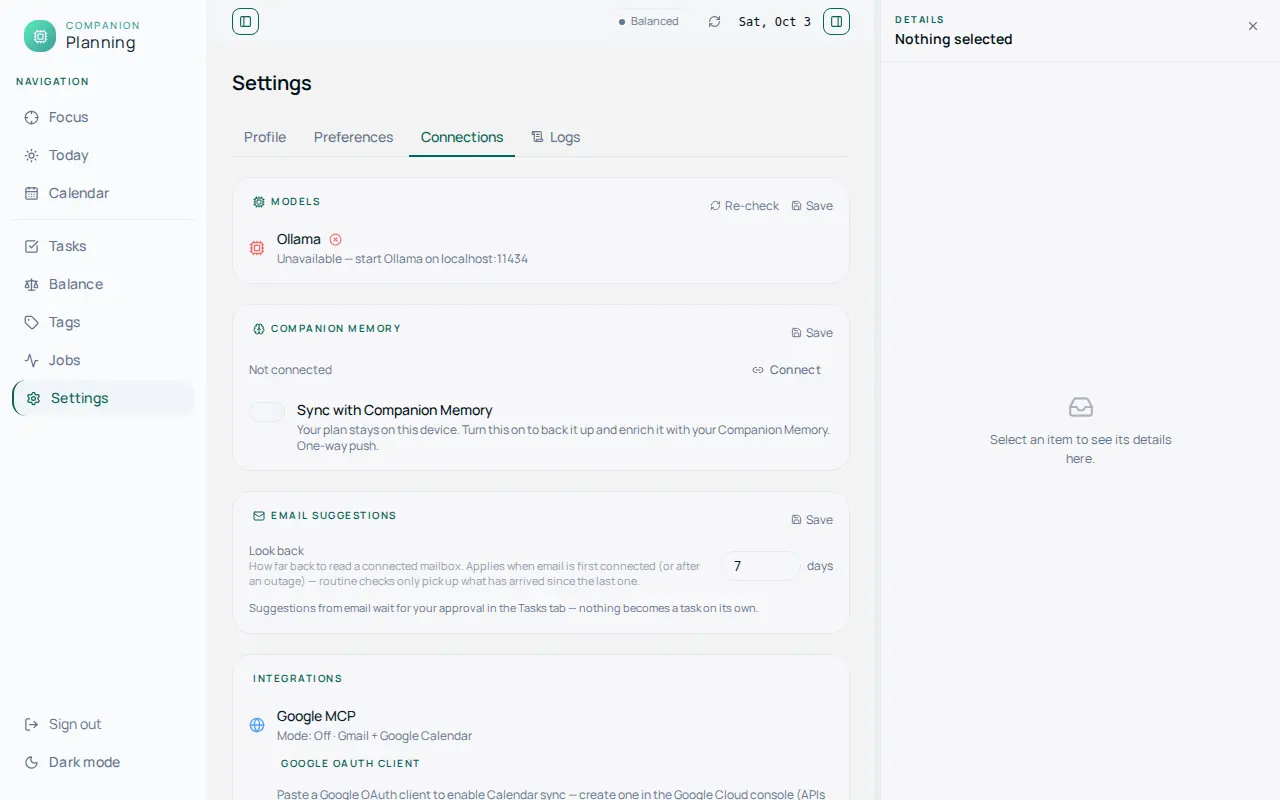
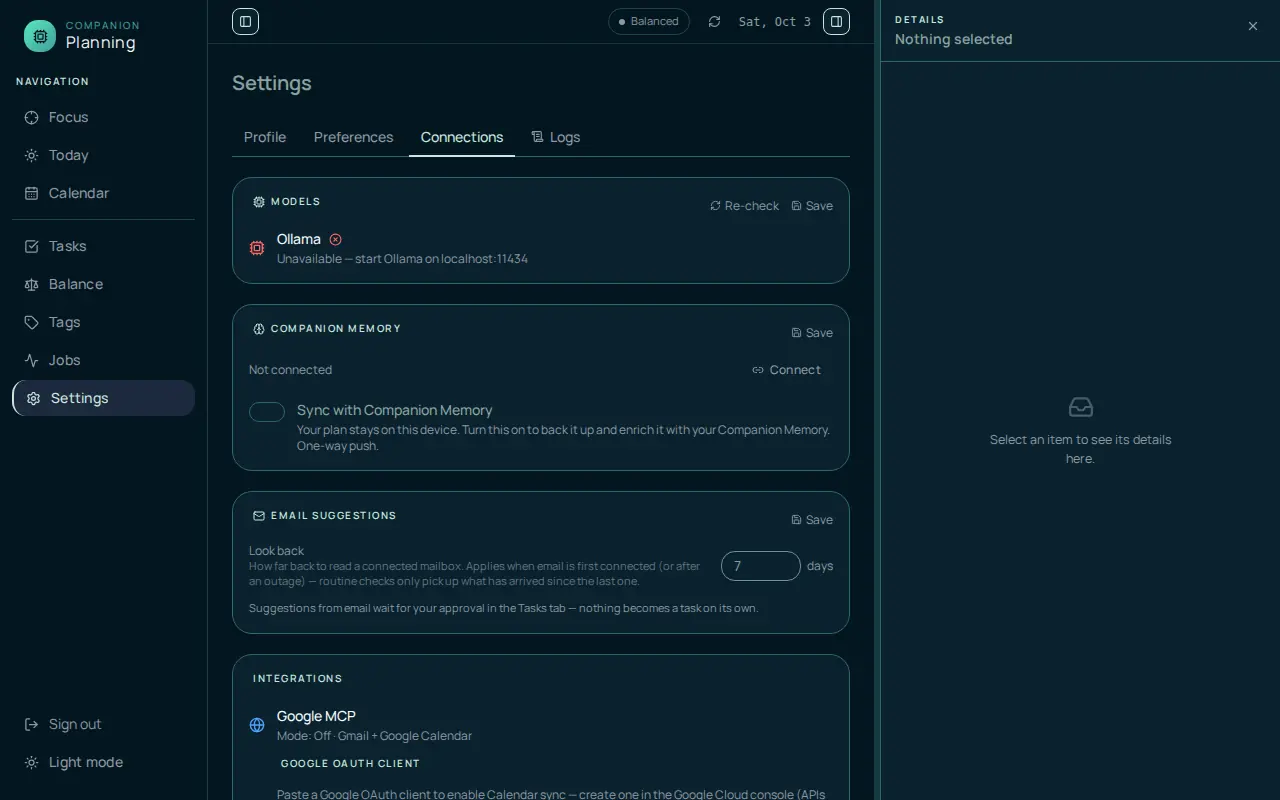
Google integration is off until you set it up. An admin pastes a Google OAuth client into Settings → Connections → Integrations, and each user then connects their own Google account. Inbound sync is read-only until write-back is enabled. Gmail access is a separate opt-in. Until you connect Google, no email or calendar data is ingested and none of the Google jobs below do anything.
Optional AI (Ollama)
Ollama is optional and gracefully degraded. With it connected, Companion Planning can:
- Generate an AI day briefing
- Extract tasks from email and calendar items
- Dedupe similar tasks using embeddings
Without Ollama, all of these fall back to deterministic behavior, and Settings shows the live AI status so you always know which mode you’re in.
Background jobs
Companion Planning runs scheduled jobs that you can view and run manually from the Jobs view. The main ones:
| Job | Cadence | What it does |
|---|---|---|
| Reminders | every minute | Fires each due reminder once |
| Gmail ingestion | every 15 min | Finds action items in email (needs Google connected with Gmail access enabled) |
| Calendar sync | every 15 min | Two-way calendar reconcile (needs Google connected) |
| Calendar task extraction | every 30 min | Extracts tasks from calendar text (needs Google connected) |
| Nightly grooming | 2:00 AM | Embedding-based dedupe, overdue bump, and straggler promotion |
| Database snapshot | 2:00 AM | Writes a backup and keeps the newest seven |
| Auto-schedule | 3:00 AM | Proposes candidates for your flight plan and sweeps missed blocks. It does not pack your whole backlog. |
Other jobs handle routine rollover, tagging, recurring tasks, and weekly learning passes. Job timing follows TZ. Suggestions that ingestion finds are promoted into New Today automatically; the old Inbox view is retired and /inbox redirects to Tasks.
flowchart LR
    G["Gmail and calendar ingestion<br/>needs Google connected"] --> N["New Today<br/>top of the Tasks view"]
    U["You add a task"] --> N
    N -->|"day rolls over"| T["Tasks<br/>Scheduled · Open"]
    A["Auto-schedule<br/>3:00 AM"] -->|"proposes flight-plan candidates"| P["Your plan<br/>tasks · time blocks · tags"]
    O["Ollama<br/>optional"] -.->|"task extraction from mail and calendar"| G
    O -.->|"embedding dedupe · day briefing"| P
    D[("SQLite<br/>DB_PATH")] --- P
REST API for agents
Companion Planning exposes an HTTP API so scripts and agents can read and act on your plan:
| Endpoint | Purpose |
|---|---|
GET /api/tasks | List and filter tasks |
GET /api/blocks | List time blocks for a date range |
GET /api/summary?date=YYYY-MM-DD | Day briefing |
POST /api/schedule/run | Run the auto-scheduler for a date |
GET /api/events (SSE) | Live event stream |
On a Hub install, the app uses local username and password sign-in, and the
API accepts your login session cookie. API-key access (x-api-key) belongs to
the app’s standalone auth mode, which the Hub install does not use, so an
agent needs a signed-in session.
Technical architecture
Companion Planning is open source under the PolyForm Noncommercial 1.0.0 license . It is engineered as a local-first, AI-augmented personal planning platform that runs as a private server on your Hub appliance or local machine.
flowchart TB
    subgraph Clients["Client Surfaces"]
        SolidPWA["SolidJS Web PWA<br/>(Reactive UI · Time-Sense Cockpit)"]
        MCPAgent["AI Agents via MCP<br/>(Hermes, OpenClaw, Claude Code)"]
    end

    subgraph ServerRuntime["Companion Planning Server Runtime"]
        direction TB
        APIServer["Node.js / Koa API Server<br/>(Port 3848)"]
        GraphQLService["GraphQL CRUD Layer<br/>+ REST & SSE Streams"]
        SchedulerEngine["Auto-Scheduler Engine<br/>(Natural Scheduling & Reactive Reflow)"]
        SyncWorker["Two-Way Calendar Worker<br/>(Google Calendar / OAuth 2.1)"]
        MemoryConnector["Memory Connector<br/>(connectors/memory.ts)"]

        subgraph Storage["Storage & Persistence"]
            SQLiteDB[("SQLite Database<br/>companion.db · WAL mode<br/>FK enforcement & owner-scoping")]
            Litestream["Litestream Replication<br/>Continuous WAL streaming"]
        end
    end

    subgraph Integrations["Local Intelligence & Memory"]
        OllamaLocal["Local Ollama LLM<br/>(Briefings & Task Extraction)"]
        CompanionMemory[("Companion Memory Server<br/>(Event & Life-Graph Recall)")]
    end

    SolidPWA <-->|"REST, GraphQL, SSE"| APIServer
    MCPAgent <-->|"Streamable HTTP MCP"| APIServer

    APIServer <--> GraphQLService
    APIServer <--> SchedulerEngine
    APIServer <--> SyncWorker
    APIServer <--> MemoryConnector

    SchedulerEngine <--> SQLiteDB
    GraphQLService <--> SQLiteDB
    SQLiteDB -.-> Litestream

    SchedulerEngine <-->|"OLLAMA_URL"| OllamaLocal
    MemoryConnector <-->|"CI_SERVER_URL"| CompanionMemory
Data layer: owner-scoped SQLite and WAL invariants
- Strict foreign-key enforcement: Every connection is initialized through a shared
openDb()helper that unconditionally activatesPRAGMA foreign_keys = ON;and covers foreign-key paths with indexes to eliminate lock contention. - Deterministic schema migrations: Managed by an internal migration runner (
server/src/db/migrations/index.ts) with forward verification. - Multi-tenant owner scoping: Every table, REST endpoint, and GraphQL resolver strictly filters by
owner_id. Rows without owners are retired, ensuring full isolation when running under organization accounts. - WAL reliability and replication: Operates in SQLite Write-Ahead Log (WAL) mode. Supports zero-downtime replication via Litestream (
litestream replicate) to S3-compatible storage without stopping the database.
The auto-scheduler and time-sense loop
- Natural scheduling semantics: Companion Planning separates start intentions from deadlines:
scheduled_forandtask_timedictate when focus begins;due_atdefines the hard deadline. - Reactive reflow: The scheduler evaluates task estimates, priority weights, and calendar container outlines, packing unscheduled tasks into available daytime slots.
- Time-sense calibration: Tracks actual completion duration against initial task estimates. The calibration loop adjusts future auto-planning estimates dynamically based on your historical velocity.
External boundaries and connectors
- Ollama AI integration: Analyzes inbox dumps, calendar entries, and task titles locally. Generates a daily morning brief, structures action items, and deduplicates tasks. When Ollama is offline, the system degrades to deterministic sorting.
- Companion Memory connector: When connected to Companion Memory, the
memory_suggestagent stages upcoming life events as suggestions in New Today and provides memory-informed briefings. - Encrypted Google Calendar sync: Connects to Google Calendar using OAuth 2.1 with PKCE. Tokens are encrypted at rest using AES-256 with a 32-byte key (
CP_KEK_B64). WithCP_SYNC_WRITEBACK=true, local blocks sync bidirectionally to external calendars. - Model Context Protocol (MCP): Exposes planning intents (
create_task,reschedule,get_daily_brief,mark_done) so local autonomous agents can plan your day on your behalf.
Use cases
- Keep a private, local todo list with time-blocked days and tags
- Let the auto-scheduler propose a day from your task list
- Turn email and calendar items into draft tasks (with Google connected and Ollama running)
- Read and drive your plan from a script or agent through the REST API and SSE stream
Privacy
Your tasks, calendar, and reflections are stored on your Hub. The app sends nothing to Companion Intelligence except optional crash reports: errors only, scrubbed of credentials and home paths, with no tracing or session replay and none of your tasks, calendar items, or reflections. Crash reports are on by default. Turn them off with the Share crash reports switch when you install, or with CI_TELEMETRY=off. If you connect Google, the app also talks to Google to sync your calendar. Whenever you open the app, your browser also loads the Manrope typeface from Google Fonts (fonts.googleapis.com and fonts.gstatic.com).
Troubleshooting
The app won’t start after install The install form requires an Admin password. Reinstall with one set.
“Today” looks off / jobs run at the wrong time The timezone is likely UTC. Set the Timezone option to your local IANA timezone and restart.
AI features aren’t doing anything Ollama is optional — check Settings for the live AI status and use Re-check. Without it, the app runs deterministically by design.
Nothing is coming in from email or calendar Google is off until you connect it. Set it up under Settings → Connections.
My data disappeared after an update
State is the SQLite file at DB_PATH under the mounted /data. Ensure ${APP_DATA_DIR}/data is persisted and backed up.
I forgot the admin password The in-app password reset emails a link, which needs SMTP configured on the container. Without SMTP, the link is written to the container log instead.
Links
- Companion Memory
- Spellbook
- GitHub repository (companionintelligence/CI-Planning) — open-source repository (PolyForm Noncommercial 1.0.0)