After you install Companion OS
You have installed Companion OS and signed in. This page explains what the machine does by itself in the first few minutes, how to check that it worked, and the settings a home lab usually needs next: the time zone, remote access, updates, and a firewall decision.
Companion OS is in beta, with current testing performed in virtual
machines. We ran the commands below on an installed arm64 image. The
amd64 image runs the same setup scripts.
What happens on its own
| When | What happens |
|---|---|
| About 15 seconds after power-on | The system reaches the sign-in screen (under a minute in our tests). |
| At first sign-in | You choose your own password, and a welcome page opens once in the browser. |
| About 3 minutes after the machine starts | A background service (ci-os-first-boot-setup.service) waits until the system is idle so it does not slow your desktop. It then downloads the default Ollama models and starts Companion Hub (about 2 minutes in our tests). |
| After that, on every start | Docker restarts Companion Hub’s containers automatically. Hub answers on port 5002 about a minute after power-on. |
The setup job runs at the lowest CPU and I/O priority. On current images, a desktop notification shows its progress (“Setting up Companion OS: step 3 of 7”) and finishes with “Companion OS is ready” (see Install Companion OS from a USB stick). Older images do not show desktop notifications. If you open Companion Hub from the dock before setup finishes, wait a minute and try again.
Check that it worked
Open a terminal (select the Terminal icon in the dock) and run these commands:
ci-os-info                                       # Companion OS version, setup status, Hub address, models, disk, GPU
systemctl status ci-os-first-boot-setup.service  # a finished run shows inactive (dead) and status=0/SUCCESS
ollama list                                      # downloaded local models
docker ps --format '{{.Names}}  {{.Status}}'     # Hub's containers: ci-hub, ci-hub-db, ci-hub-queue, traefik
curl -s -o /dev/null -w '%{http_code}\n' http://localhost:5002/   # 200 means Hub answers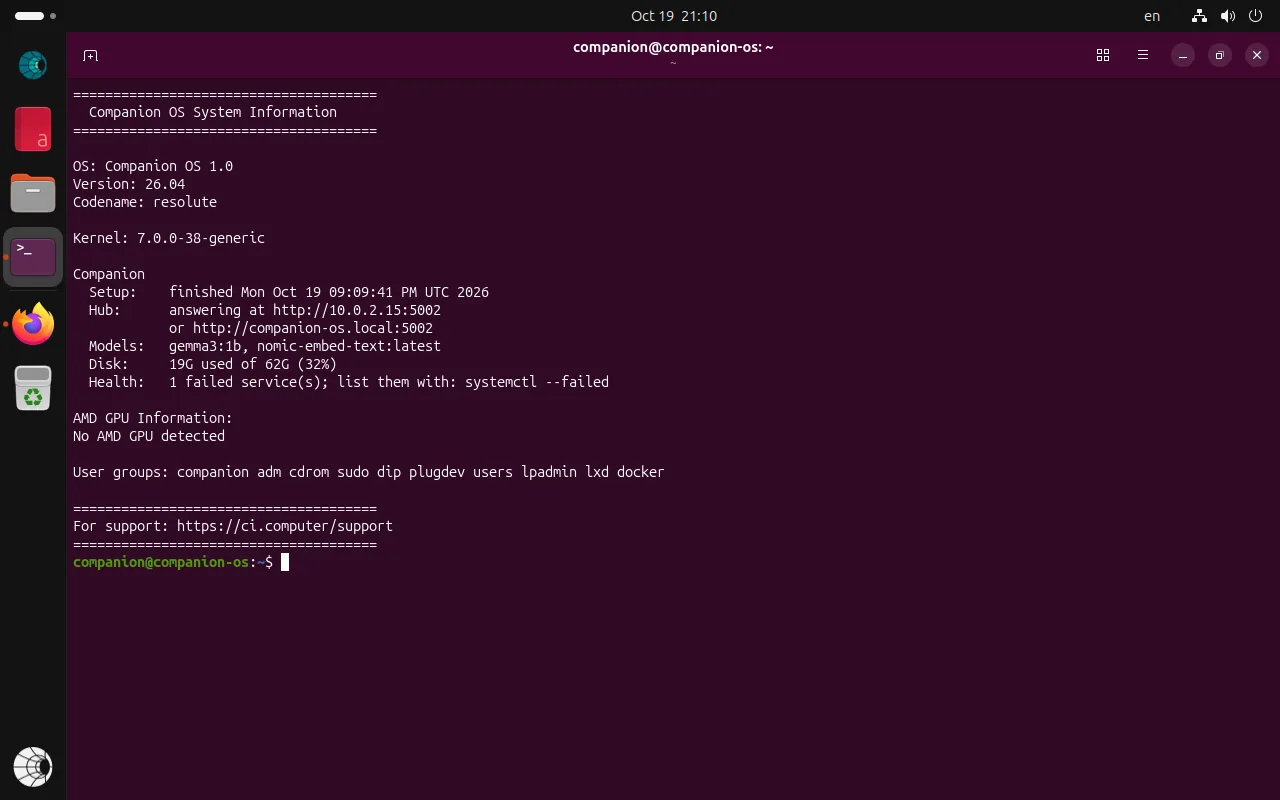
A healthy machine lists nomic-embed-text and gemma3:1b, shows four running containers (ci-hub, ci-hub-db, and ci-hub-queue say healthy), and prints 200. If something is missing, see Troubleshooting Companion OS.
To run the first-time setup again, for example after a network problem, run:
sudo ci-os-setupThe log of the setup is in /var/log/ci-os-first-boot-setup.log.
Open Hub and pair it
Open Hub
On the machine, choose Companion Hub in the dock. From another device on your network, open http://<the machine's IP address>:5002 in a browser. To find the IP address, run ip -4 addr on the machine or check your router’s device list.
Pair the device
Hub starts on a pairing screen. Pairing links this device to your CI Account. Follow First login and setup and Device pairing.
Set your time zone and keyboard
The one-click installer includes a Language, keyboard, time zone… button (see Install Companion OS from a USB stick). If you did not use it, the machine defaults to English, a US keyboard layout, and the time zone detected from the network (or UTC if the machine was offline). After your first sign-in, check the clock. To change the time zone or keyboard layout from the terminal, run:
sudo timedatectl set-timezone Europe/Berlin     # list the names with: timedatectl list-timezones
sudo localectl set-x11-keymap de                # or use Settings, Keyboard
You can also change them in Settings, System, Date & Time, and Region & Language.
Reach the machine from other devices
These are listening on your network out of the box:
| Port | What | Notes |
|---|---|---|
22 | SSH | Signs in with your account’s password. |
5002 | Companion Hub | Needs pairing before it does anything. |
8080, 8443, 8880 | Traefik, Hub’s local web router | Part of Hub. |
11434 | Ollama (the model server) | Has no password. Anything that can reach the port can use your models. |
The firewall is installed but switched off. Keep the machine behind your
router, and do not forward these ports from the internet. To use it away from
home, use a private network such as Tailscale, which Companion OS already
includes. Run sudo tailscale up, sign in, and reach the machine by its
Tailscale address.
If you want a host firewall, allow what you use and turn it on:
sudo ufw allow 22/tcp          # SSH
sudo ufw allow 5002/tcp        # Companion Hub
sudo ufw enable
Docker applies its own rules for published container ports, so check from another device that the ports you meant to close are closed.
Keep it up to date
- Operating system. Security updates install automatically. To update everything yourself, run
sudo apt update && sudo apt upgrade. Older images show a number of updates waiting at the first sign-in because the image carries the packages of its build day. Newer ones keep that pop-up off andci-os-infotells you when a restart is waiting. - Companion Hub. Update it from its dashboard. See Updating Companion Hub.
- Back up before big changes. See Backup and restore.
Where things are
| What | Where |
|---|---|
| First-time setup log | /var/log/ci-os-first-boot-setup.log |
| Marker that setup finished | /var/lib/ci-os/.first-boot-setup-done |
| Models | managed by Ollama: ollama list, ollama pull, ollama rm |
| Hub’s containers | docker ps; they restart on their own after a reboot |
| Your user | companion, in the sudo and docker groups |