Finding your app’s URL
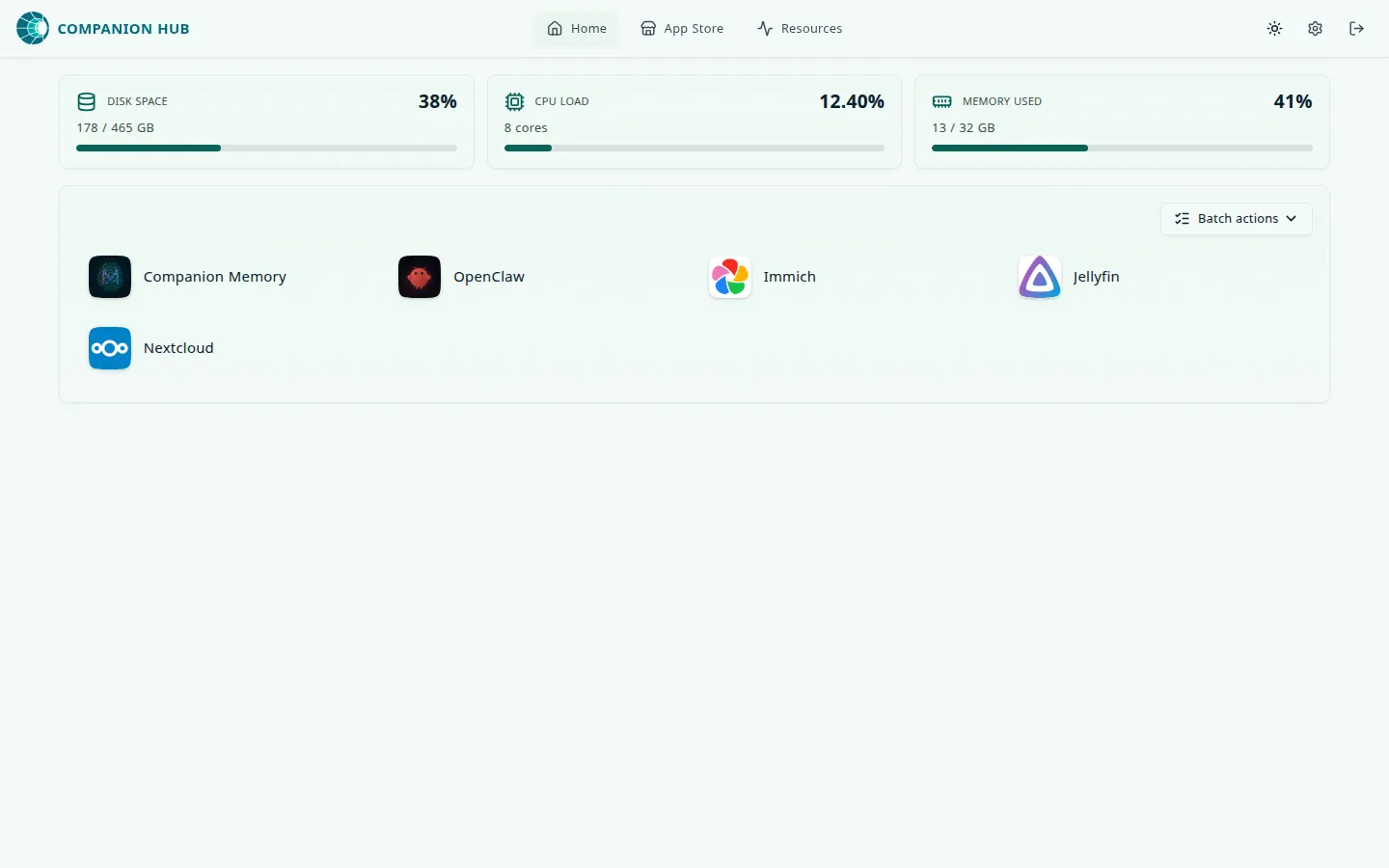
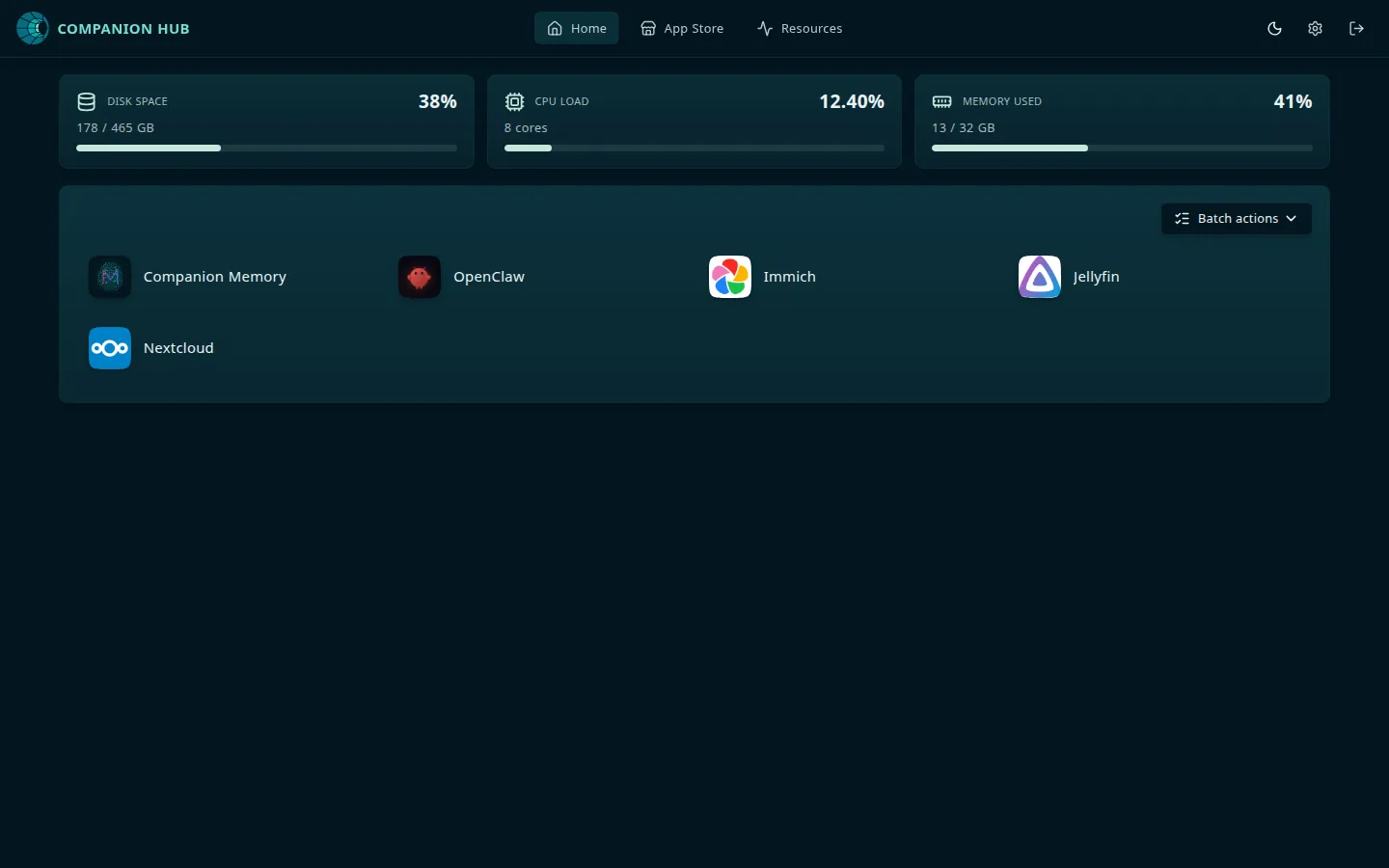
Once you install an app and its status reads Running, open the app’s detail page in the dashboard and check its Access points card. The card lists every URL Companion Hub has configured for the app and shows whether each route is active right now. Selecting Open launches the highest-priority active route.
Three ways to reach an app
Every web app in Companion Hub has up to three access points. Local access works out of the box on your host machine; Private VPN and Public domain light up when you connect Tailscale or pair with Cloudflare Gateway.
| Access point | How it routes traffic | Example URL | Works when |
|---|---|---|---|
| Local access | Connects directly to the app container’s published host port (<app-port>). | http://127.0.0.1:8301 on the Hub machine, or http://<hub-lan-ip>:8301 from another device | The app container is running |
| Private VPN | Publishes the app over your tailnet with HTTPS via Tailscale Serve (tailscale serve). | https://<hub-name>.<tailnet>.ts.net:8301 | Tailscale is connected, HTTPS certificates are enabled on your tailnet, and the app’s port is published |
| Public domain | Routes traffic from the Cloudflare Gateway through cloudflared and Traefik to the container. | https://<app>-<hub>-<org>.<zone> (for example, on ci0.pw or a custom domain) | The Hub is paired with a CI Account and the app’s Exposure mode is Public Web |
Each entry displays a live status badge: Enabled, Pending, Refused, Not configured, Unavailable, or Local only (for apps whose manifest forbids public exposure). Only an Enabled route shows a clickable URL, an Open button, and a copy button. Because Local access connects directly to the host port without external tunnels, test that route first whenever you troubleshoot connectivity.
The three routes side by side:
flowchart LR
    B["Your browser"] -->|"Local access<br/>http://127.0.0.1:8301"| A["App container"]
    B -->|"Private VPN<br/>https://hub.tailnet.ts.net:8301"| V["Tailscale Serve"]
    B -->|"Public domain<br/>https://app-hub-org.zone"| C["Cloudflare tunnel<br/>and Traefik"]
    V --> A
    C --> A
If a Private VPN or Public domain URL fails to load, test Local access first. If Local access opens, the app container is healthy and the issue lies in the Tailscale or Cloudflare route.
Open an app from another device
When you view the dashboard on the Hub machine itself, Local access uses http://127.0.0.1:<port>. When you open the dashboard from another device on your local network — for example, at http://192.168.1.20:5002 — Hub substitutes the LAN address you used to reach the dashboard (http://192.168.1.20:8301). Select Show QR code to scan that URL with a phone or tablet on the same Wi-Fi network; Hub shows a QR code only when the address is reachable from other devices.
For agent apps (mcp_client apps such as OpenClaw WebCLI and Hermes) and apps
without built-in authentication (edge_auth.default in their manifest), Hub
binds the published Docker host port to 127.0.0.1 only. Their Local
access URL works only in a browser on the Hub machine itself, and Hub omits
the LAN QR code. To open these apps from another device, use Private VPN
or Public domain (where Hub’s Edge Authentication protects the route).
Check what state the app is in
Confirm the app is running
cihub app statusThe app’s page also shows its status. An app that’s Installing, Starting, or Stopped has no live address yet.
Try Local access on the Hub machine
Use the address in the Local access entry, for example http://127.0.0.1:8301. If it loads, the app is healthy.
Check the route that failed
- Private VPN says Pending or Not configured — Tailscale isn’t connected, HTTPS certificates aren’t enabled on your tailnet, or the port isn’t published yet. See Tailscale.
- Private VPN says Refused — Tailscale refused the Hub’s changes, because the account the Hub runs as isn’t the computer’s Tailscale operator. Open Settings → Network, run the command it shows, and the app publishes within five minutes. See Tailscale refused the Hub’s changes.
- Public domain says Not configured — the Hub isn’t paired yet, or the app’s Exposure mode isn’t Public Web. Pairing sets up the tunnel; the app’s own settings decide whether it uses it. See Cloudflare Gateway.
While an app is starting
Through the Public domain address, an app that is still starting shows <App> is starting… instead of Bad Gateway. The page reloads itself every five seconds and opens the app as soon as it answers. Hub treats an app as starting for two minutes after it last changed state or the Hub itself started. After that, the page reads <App> isn’t responding, with an Open <App> in Companion Hub button on a paired Hub. The Local access address goes straight to the app’s port and shows your browser’s own error instead. See An app’s address says it is starting.
The Local domain setting
Settings → General settings → Local domain is not the address you type to open a local app. Hub opens local apps by port, as above. The setting routes traffic from the Cloudflare tunnel to Traefik for apps you expose to the public web, and it defaults to localhost. Leave it alone unless you’re working through Link a domain to your dashboard.
The field’s hint text still says apps are reachable at
app-name.local-domain. That hostname is not a local address on current
versions of Hub.
For HTTPS on your LAN, see Local SSL certificate. For access from outside your network, see Networking.