Install Companion OS from a USB stick
Companion OS is the operating system of the Companion appliance. It comes with Docker, Ollama, and Companion Hub already set up. This page takes you from an image file to a machine that shows the Hub pairing screen: write the image to a USB stick, start the machine from the stick, and install.
Companion OS is in beta, and the installer erases the target disk. Get the image for your hardware from your Companion contact. We verified the steps below in virtual machines; physical USB sticks and physical PCs are still under evaluation.
What you need
| An image file | companion-os-<version>-amd64.iso for an x86-64 PC, or companion-os-<version>-arm64.iso for an arm64 PC or virtual machine. |
| A checksum file | SHA256SUMS, next to the image. |
| A USB stick | Larger than the image. 16 GB or more is comfortable; 8 GB is the minimum for the amd64 image. Writing the image erases everything on the stick. |
| The target machine | A UEFI machine with an internal disk of 25 GB or more. Allow 64 GB or more if it will also download AI models. It needs a network connection for the first start. |
An Apple-silicon Mac cannot start from this stick. To try the arm64 image on a Mac, run it in a virtual machine.
Companion Capture, the screen-and-activity app, has no arm64 build yet, so the arm64 image does not include it.
1. Check the image file
Open a terminal in the folder that holds both files and compare the checksums.
Linux
sha256sum -c SHA256SUMSThe command prints OK next to the file name. If it prints anything else, download the file again.
2. Write the image to the stick
The image is a hybrid ISO. You write it to the stick byte for byte, and the stick starts a UEFI machine.
Name the stick, not another disk. dd writes to whatever device you give
it and does not ask. Unplug the stick, list your disks, plug the stick in, and
list them again. The new entry is the stick. Write to the whole device
(/dev/sdX or /dev/diskN), never to a partition such as /dev/sdX1.
Linux
Find the stick. It has TRAN set to usb, RM set to 1, and the size you expect:
lsblk -o NAME,SIZE,MODEL,TRAN,RM,MOUNTPOINTSWrite the image. Replace /dev/sdX with the whole device of the stick:
ISO=companion-os-1.0-amd64.iso
DEV=/dev/sdX
sudo umount "$DEV"?* 2>/dev/null || true
sudo dd if="$ISO" of="$DEV" bs=4M conv=fsync oflag=direct status=progress
syncThe write takes a few minutes. The stick sets the speed.
3. Check the write
A stick that fails halfway can still look fine. Read back exactly as many bytes as the image has and compare the hashes. This is optional on Windows, where the tools above check the write themselves.
Linux
SZ=$(wc -c < "$ISO"); want=$(sha256sum "$ISO" | cut -c1-64)
got=$(sudo dd if="$DEV" bs=1M count=$(( (SZ + 1048575) / 1048576 )) 2>/dev/null | head -c "$SZ" | sha256sum | cut -c1-64)
[ "$want" = "$got" ] && echo "the stick matches the image" || echo "MISMATCH: write it again"If it prints MISMATCH, write the image again, or try another stick or another USB port.
4. Start the machine from the stick
Open the boot menu
Plug the stick into the target machine and turn it on. Open the firmware boot menu right away (usually Esc, F2, F10, F12, or Del) and choose the stick’s UEFI entry. A “legacy” or “CSM” entry does not start the image.
If the machine refuses to start from the stick, turn Secure Boot off in the firmware settings and try again.
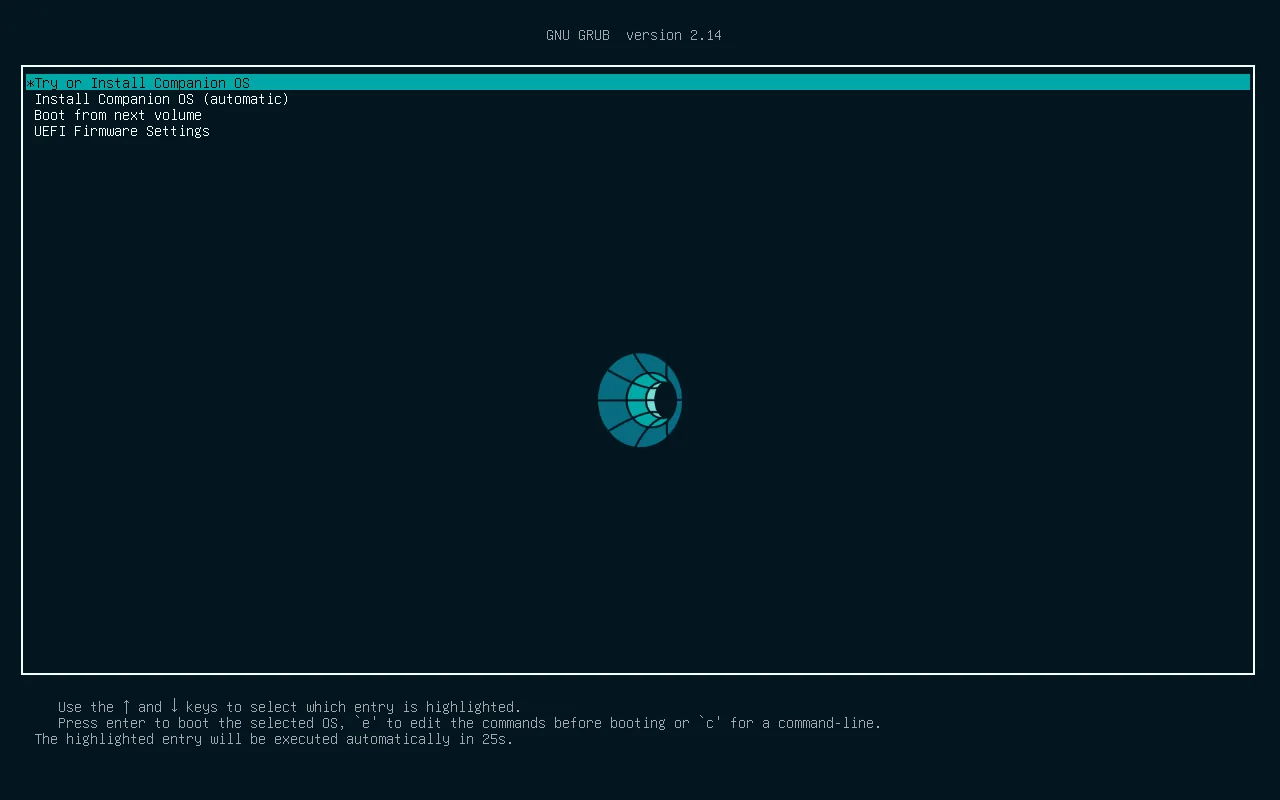
Choose an entry
The Companion OS boot menu has two entries. Try or Install Companion OS starts after 15 seconds. Install Companion OS (automatic) goes straight to the one-click installer.
Wait for the desktop
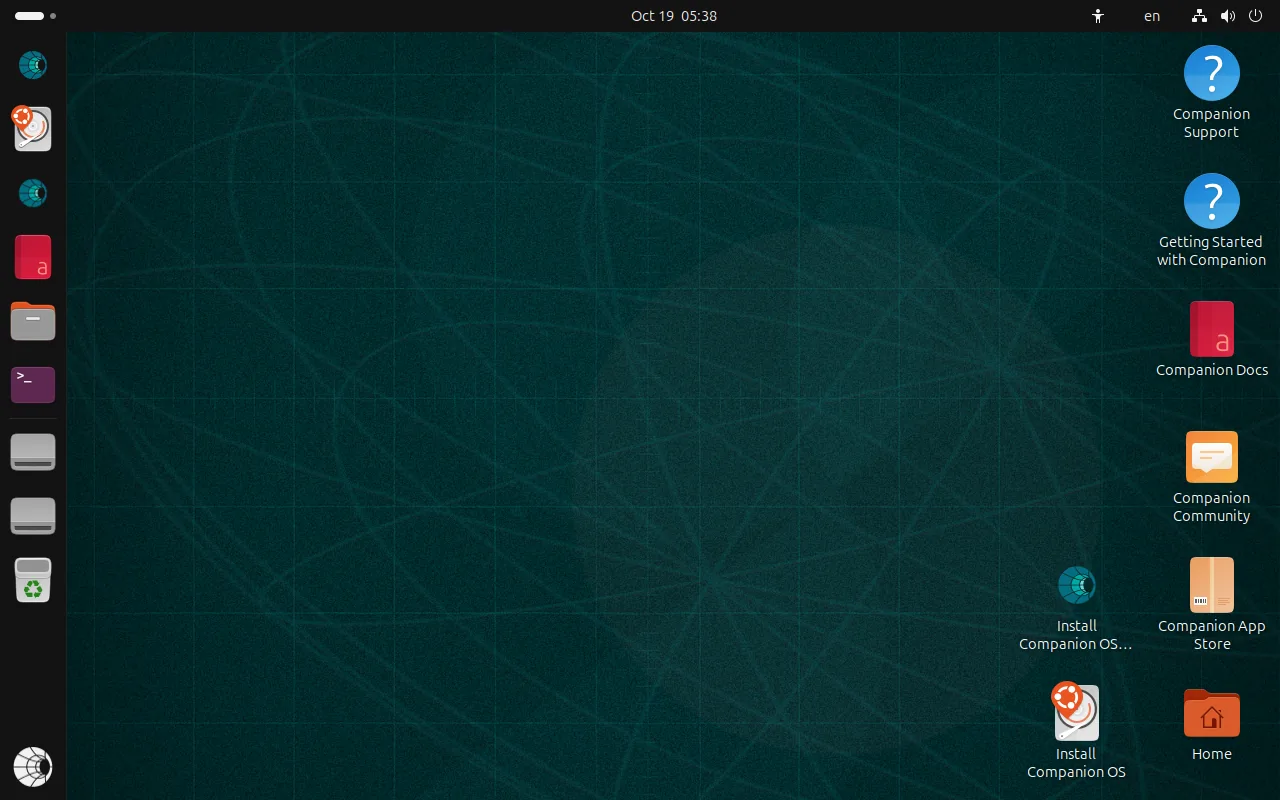
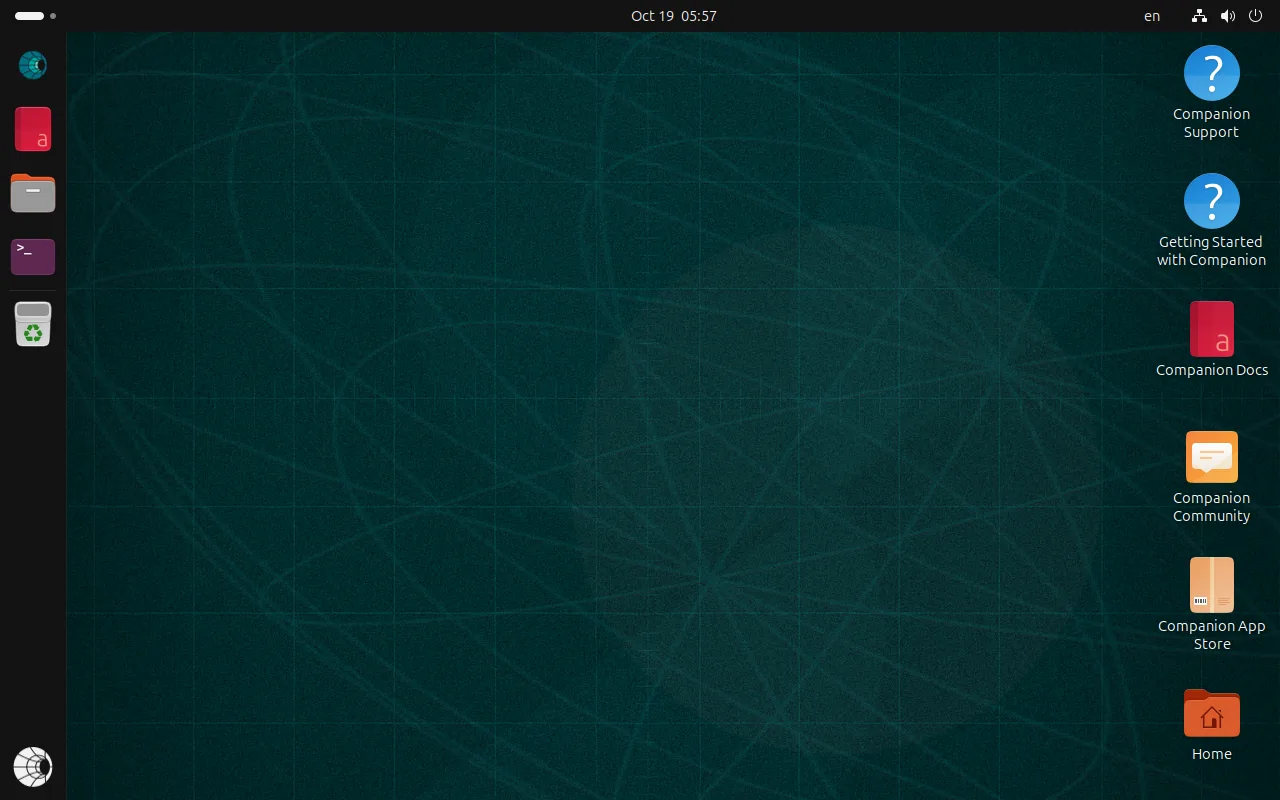
The live desktop appears after a few minutes. Canonical’s installer window opens first and you can close it. The left dock starts with Install Companion OS (automatic). Five Companion shortcuts sit on the desktop: Support, Getting Started, Docs, Community, and App Store.
5. Install
You have two ways to install.
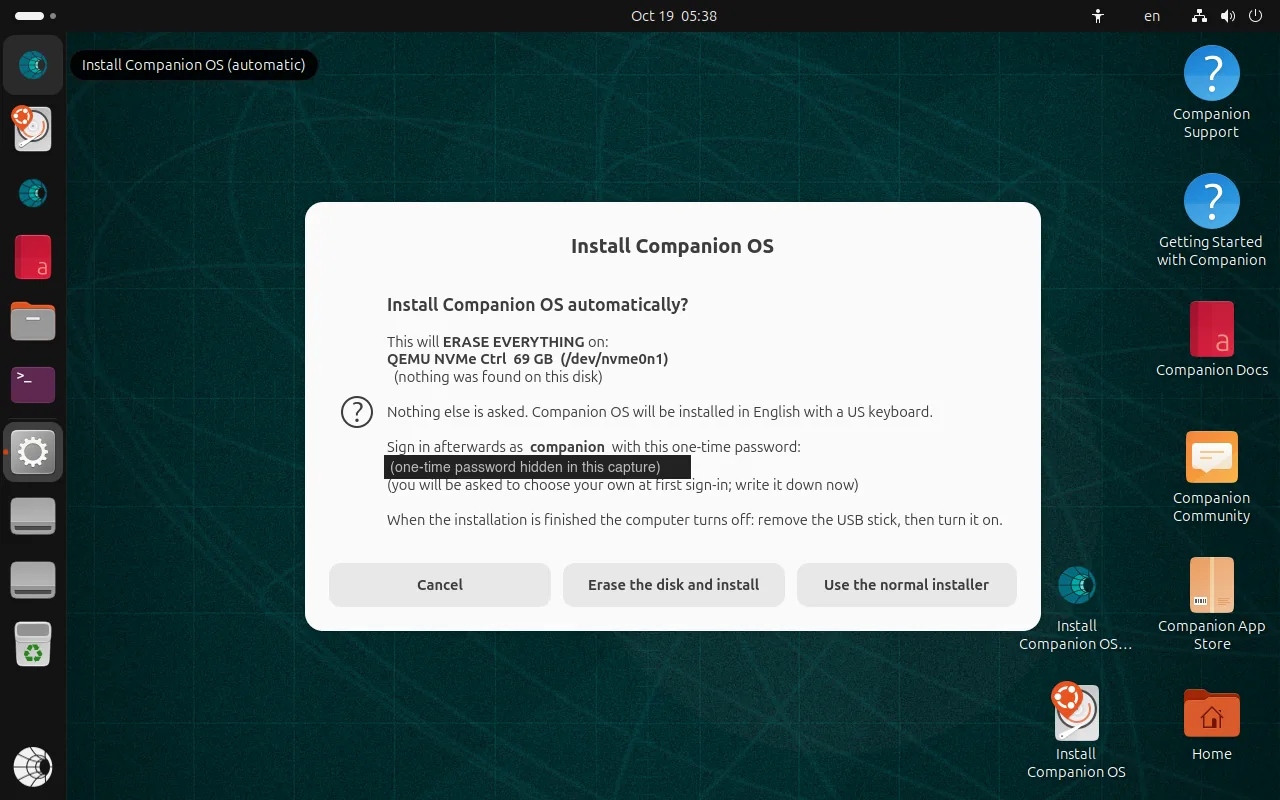
- One-click installer. Choose Install Companion OS (automatic), either in the boot menu or in the dock. One dialog names the disk it will erase, with the model, the size, the device, and everything found on it. It also shows a one-time password for the user
companion. The default button is Cancel. - Normal installer. Choose Use the normal installer in that dialog, or start from the first boot menu entry. This is Canonical’s installer, so its window keeps Ubuntu’s own text.
The one-click installer never offers the disk you started from, a removable disk, or a disk smaller than 25 GB.
Choose the language, keyboard, and time zone (optional)
The dialog says which language, keyboard layout, and time zone it will install with. If you change nothing, that is English (United States), the US keyboard, and a time zone the installer detects from the network (UTC if the machine is offline). To change any of the three, choose Language, keyboard, time zone….
- A small window lists Language, Keyboard, and Time zone, each with its current value. Select a row and choose Change.
- A list opens. Type to search it (for example
Germany,German, orBerlin), select an entry, and choose Choose. Back leaves the row as it was. - Do the same for the other rows, then choose Done. The installer dialog comes back and names your choice. The one-time password is the same as before, and the default button is still Cancel.
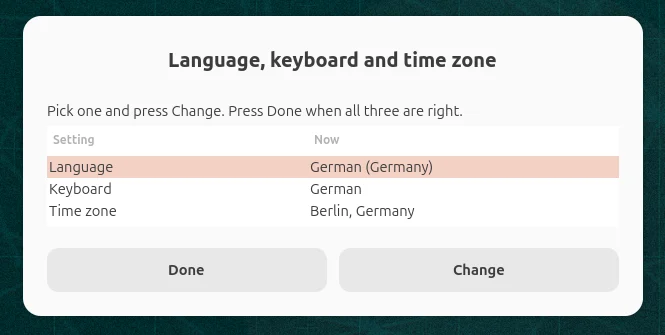
Choosing a language also suggests a keyboard and, when the country has a single time zone, that time zone. German (Germany) suggests the German keyboard and Berlin. For a country with multiple time zones, the time zone stays on Detect automatically. A later language choice never overwrites a keyboard or time zone that you picked manually.
What the lists hold:
| List | What it offers |
|---|---|
| Language | Only the languages whose packs are on the image: German, English, Spanish, French, Italian, Portuguese, Russian, and Chinese, each in its regional forms. The normal installer lists more and downloads their packs. |
| Keyboard | Keyboard layouts only. There are no variants (dead keys, Dvorak, “intl”). Change a variant afterwards in Settings, Keyboard. |
| Time zone | Detect automatically first, then every zone by city and country, then UTC. Detection needs a network; choosing a zone here does not. |
Verification notes. [V] On the arm64 image in a virtual machine (19
October 2026), we selected German (Germany), the German keyboard, and Berlin
in this window. The installed system booted into a German sign-in screen with
locale de_DE.UTF-8, keyboard layout de, and time zone Europe/Berlin.
[I] The remaining languages and their keyboard and time zone suggestions
are covered by unit tests.
Start the install
Write the one-time password down, then choose Erase the disk and install. A progress window follows the installer. When the installation finishes, the computer powers itself off (about 10 to 12 minutes in virtual machines).
Once the computer powers off, remove the USB stick and turn the machine back on.
6. First sign-in
Sign in with the one-time password
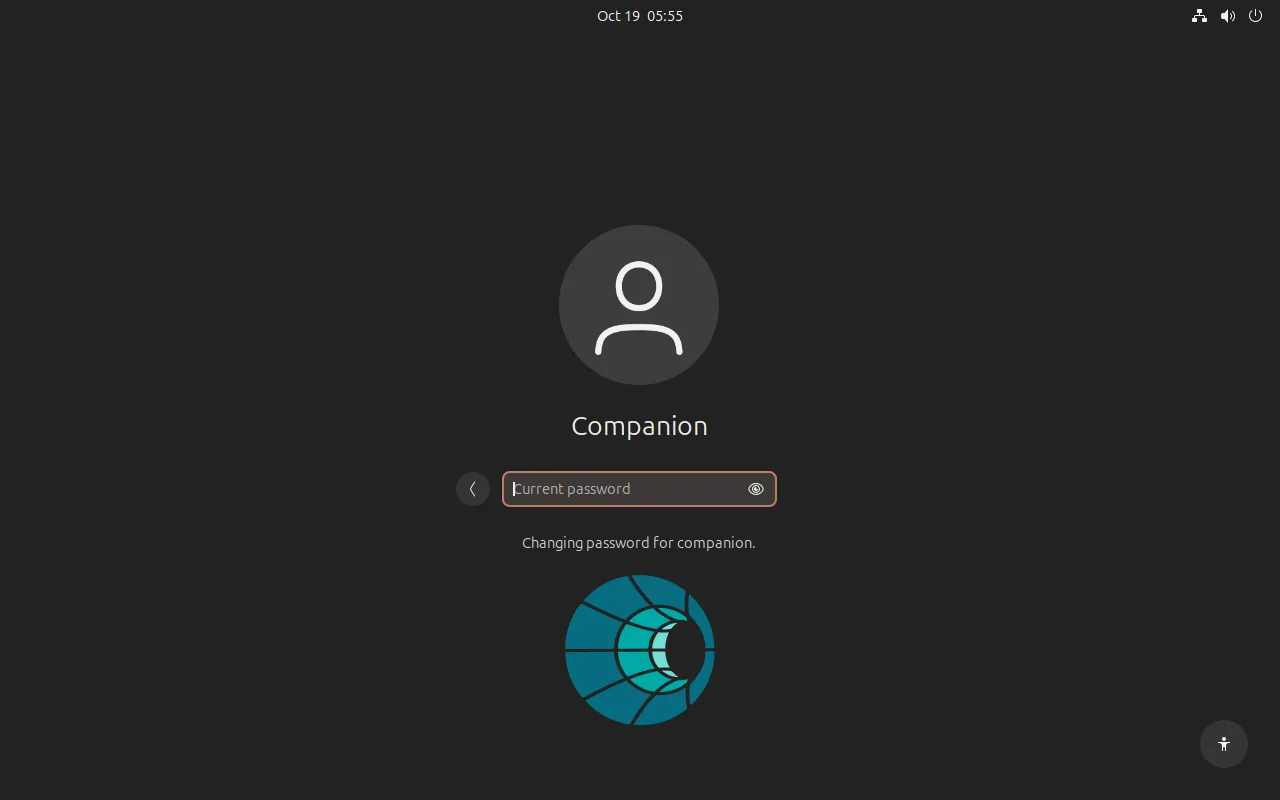
Select Companion and enter the one-time password. Companion OS asks you to choose your own password before it opens the desktop.
Read the welcome page
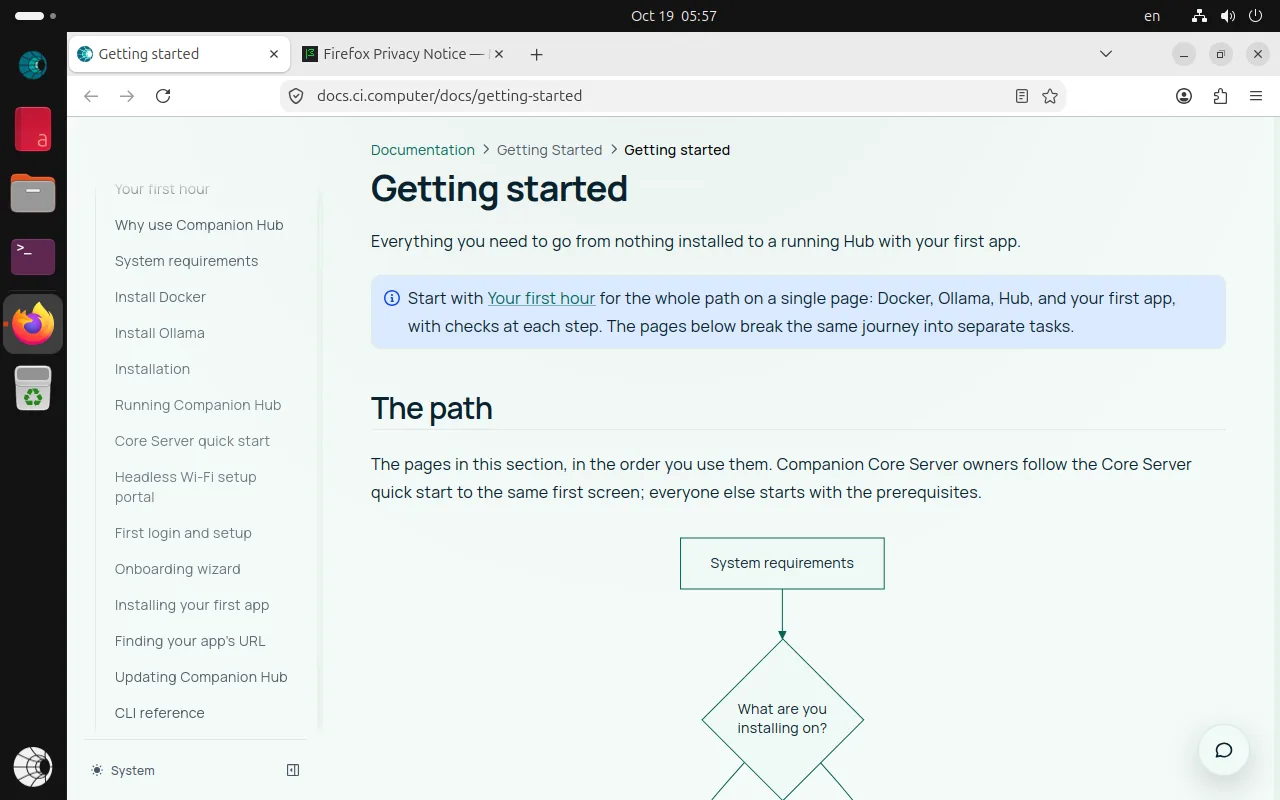
A Companion welcome page opens once in your browser. It is the Getting started section of these docs.
The desktop has shortcuts to the docs, support, community, and the app store, and the dock holds Companion Hub, Docs, Files, and Terminal.
Let the first-time setup finish
About three minutes after the machine starts, a background job waits for the machine to be quiet. It then downloads the two default AI models, about 1 GB in total, and starts Companion Hub. It runs at low priority so the desktop stays responsive. In virtual machines it finished in two to three minutes. A machine that is not supported for the larger default model skips that model.
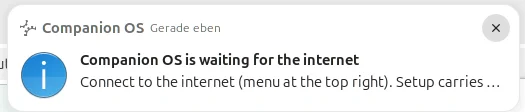
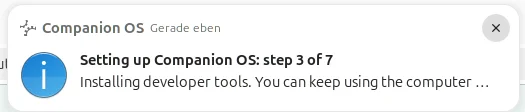
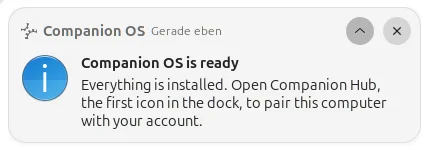
You do not have to watch it. A notification at the top of the screen shows where it is, and it updates in place:
| The notification says | What is going on |
|---|---|
| Companion OS is getting ready | The setup has not started yet. It starts about three minutes after the machine does. |
| Setting up Companion OS: step 3 of 7 | The setup is running. The text under the title names the step, such as installing developer tools. |
| Companion OS is waiting for the internet | The network is not up yet. It can show for a moment at the start while the machine connects. If you are offline, connect with the menu at the top right. The setup carries on by itself. |
| Companion OS setup needs attention | A step stopped. The setup tries again by itself. To try now, run sudo ci-os-setup. ci-os-info shows the step. |
| Companion OS is ready | ”Everything is installed. Open Companion Hub, the first icon in the dock, to pair this computer with your account.” Step 7 below shows Hub. |
The notification has no button: open Companion Hub from the dock. Steps that finish quickly do not show a banner, so the step numbers can skip. The ready message appears once, in English regardless of the language you chose during installation. The live USB session does not show setup notifications. If you turn on Do Not Disturb, the banners stay hidden and the notifications wait in the list at the top of the screen.
If the screen goes dark. After five minutes without a click or a key, the screen blanks and the session locks. That is Ubuntu’s default. The setup takes about two minutes and keeps running, so a machine you leave to finish by itself may be locked when you come back. Unlock it with your password. The messages wait in the list at the top of the screen (select the clock), and the ready message is there.
Verification notes. [V] We tested two fresh installs of the arm64
image in a virtual machine with a German desktop (19 October 2026) on a fast
network. The first start of the first install showed “getting ready” and steps
3, 5, and 7 of 7, finishing in 2 minutes 28 seconds. The first start of the
second install showed “waiting for the internet”, “getting ready”, steps 1, 5,
and 7 of 7, and “ready” with the wording in the table, finishing in 2 minutes
11 seconds. A second run of the script did not repeat the ready message.
[I] We verified the “needs attention” banner in a targeted test.
7. Pair the Hub
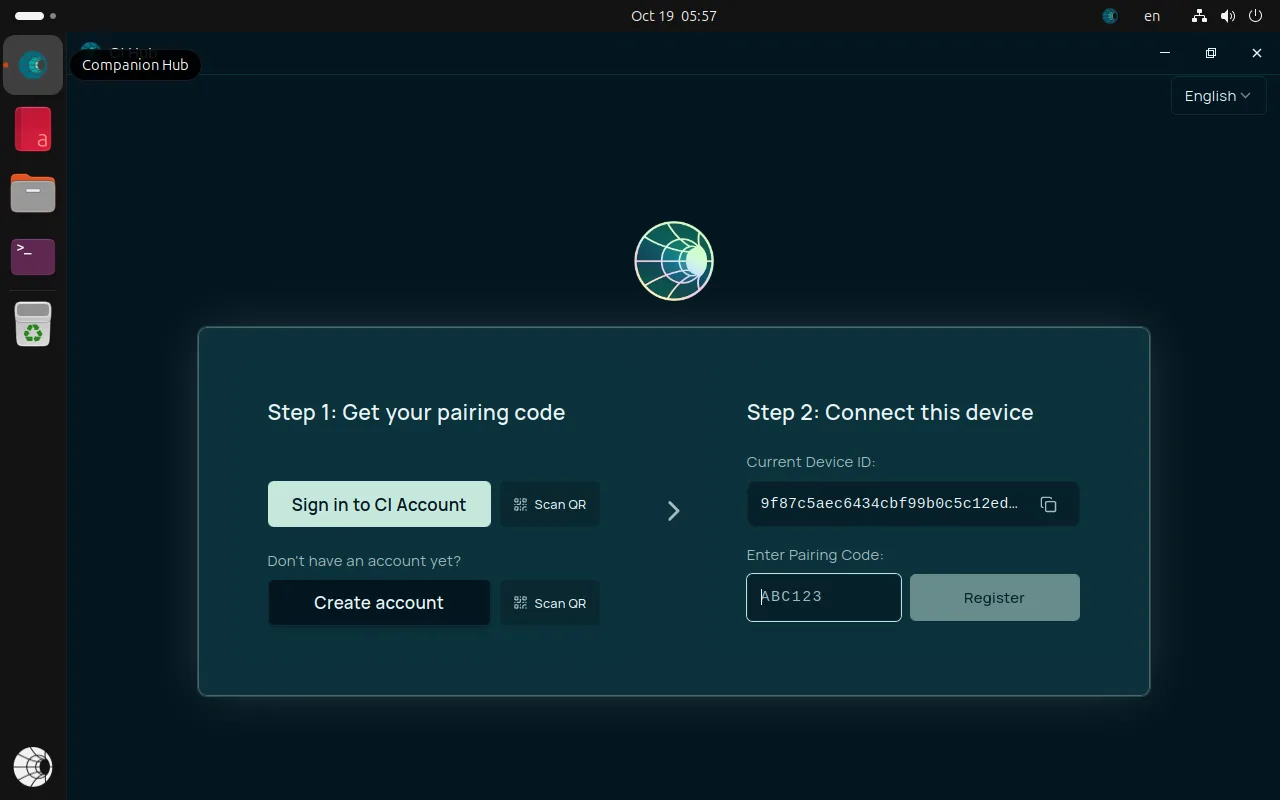
Open Companion Hub from the dock. Hub starts on a pairing screen. Select Sign in to CI Account to get a pairing code, then enter it and select Register. Pairing is a step you take yourself, because it ties this device to your CI Account. The Core Server quick start and Device pairing cover the rest.
Troubleshooting
| Symptom | What to do |
|---|---|
| The firmware does not list the stick. | Check the checksum (step 3) and write the image again. Try another USB port. Make sure the machine starts in UEFI mode, not legacy or CSM. |
| The machine refuses to start from the stick. | Turn Secure Boot off in the firmware settings and try again. |
| The screen shows text while the live system starts. | Wait. On arm64 the boot messages stay on screen until the desktop appears. |
| The one-click dialog says no disk qualifies. | The machine has no internal disk of 25 GB or more besides the stick. Use a larger disk, or the normal installer. |
The system reports one failed service, pd-mapper, on an arm64 machine. | This is a known cosmetic issue on machines that are not Snapdragon. It does not affect Hub. |
| Hub does not open. | Wait five minutes after the first start, then open http://localhost:5002 in a browser. |
More rows, including the setup log and network problems, are in Troubleshooting Companion OS.
Next
- After you install Companion OS: what runs by itself, how to check it, the time zone, remote access, and updates.
- Choose hardware for Companion OS: memory, disk, models, and graphics cards.
- First login and setup: pair the device and finish the onboarding wizard.